Embedded Systems – Radxa Zero 3W Setup & Docker Environment
Complete setup guide for the Radxa Zero 3W (Rockchip RK3566, 8GB RAM) – OS installation, SSH configuration, Docker and Docker Compose installation, and troubleshooting for Debian Bookworm.
Overview
The Radxa Zero 3W is a compact, powerful single-board computer based on the Rockchip RK3566 SoC, featuring:
- Rockchip RK3566 – Quad-core ARM Cortex-A55.
- 8GB RAM – Ample memory for containerised applications.
- On-board Wi-Fi & Bluetooth – Built-in wireless connectivity.
- Debian Bookworm – Official OS support.
- Docker-ready – Perfect for containerised development.
This page documents the complete setup process for the Radxa Zero 3W, including OS installation, SSH configuration, and Docker/Docker Compose installation with full troubleshooting.
Architecture
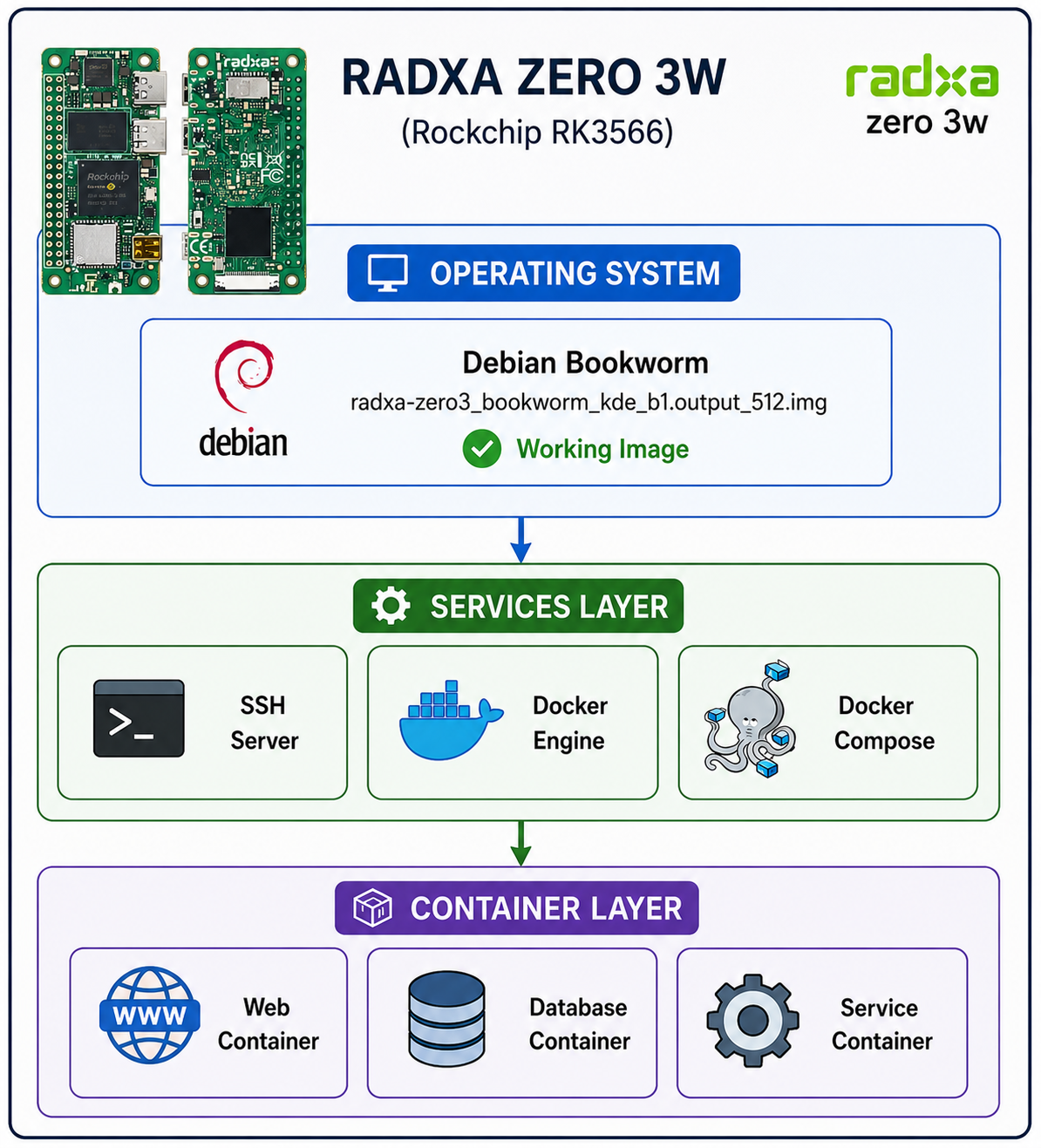
Getting Started
Hardware Specifications
| Component | Specification |
|---|---|
| SoC | Rockchip RK3566 (Quad-core ARM Cortex-A55) |
| RAM | 8GB DDR4 |
| Storage | microSD card slot (eMMC optional) |
| Networking | Wi-Fi 5 + Bluetooth 5.0 |
| USB | USB 2.0 Type-C (OTG) + USB 3.0 Type-A |
| Video | Micro HDMI 2.0 |
| GPIO | 40-pin header |
✅ Working OS Image
| Image | Status |
|---|---|
radxa-zero3_bookworm_kde_b1.output_512.img.xz | ✅ Fully working |
| Username: radxa | |
| Password: radxa |
Download: Radxa Zero 3 Official Downloads
Flashing the Image
Use balenaEtcher or Raspberry Pi Imager to flash the .img.xz file to a microSD card. The .xz format can be written directly – no need to extract first.
Initial Setup
1. Boot and Login
Insert the SD card, power on, and log in:
Username: radxa
Password: radxa
2. Enable SSH
SSH is disabled by default. Enable it:
sudo systemctl start ssh
sudo systemctl enable --now ssh
Now you can connect remotely:
ssh radxa@192.168.1.xxx3. Set a Static IP (Optional)
# Edit network configuration
sudo nano /etc/network/interfaces

# Or use nmcli (NetworkManager)
nmcli con mod "Wired connection 1" ipv4.addresses 192.168.1.100/24
nmcli con mod "Wired connection 1" ipv4.gateway 192.168.1.1
nmcli con mod "Wired connection 1" ipv4.dns "8.8.8.8 4.4.4.4"
nmcli con mod "Wired connection 1" ipv4.method manual
nmcli con down "Wired connection 1" && nmcli con up "Wired connection 1"
Docker & Docker Compose Installation
Step 1: Install Prerequisites
sudo apt update
sudo apt install -y ca-certificates curl gnupg
Step 2: Add Docker’s Official GPG Key
sudo install -m 0755 -d /etc/apt/keyrings
curl -fsSL https://download.docker.com/linux/debian/gpg | sudo gpg --dearmor -o /etc/apt/keyrings/docker.gpg
sudo chmod a+r /etc/apt/keyrings/docker.gpg
⚠️ Important: Use /linux/debian/ (not /linux/ubuntu/) because Radxa Zero 3 runs Debian Bookworm.
Step 3: Add Docker’s Official Repository
echo "deb [arch=$(dpkg --print-architecture) signed-by=/etc/apt/keyrings/docker.gpg] https://download.docker.com/linux/debian bookworm stable" | sudo tee /etc/apt/sources.list.d/docker.list > /dev/nullStep 4: Install Docker and Docker Compose
sudo apt update
sudo apt install -y docker-ce docker-ce-cli containerd.io docker-buildx-plugin docker-compose-plugin
Step 5: Add User to Docker Group
sudo usermod -aG docker $USER⚠️ Important: You must log out and log back in (or reboot) for this change to take effect.
Step 6: Verify Installation
docker --version
docker compose version
Expected output:
Docker version 24.0.7, build ...
Docker Compose version v2.24.6
Step 7: Test with Hello World
docker run hello-worldTroubleshooting: Docker Group Permission
Issue: Permission denied When Running Docker
Symptom:
docker: permission deniedCause: The user is not in the docker group, or the group change hasn’t taken effect.
Solutions:
| Solution | Command |
|---|---|
| Reboot | sudo reboot |
| Apply group change | newgrp docker |
| Re-login via SSH | exit then SSH back in |
| Temporary workaround | sudo docker run hello-world |
Verify Group Membership
groupsYou should see docker in the output.
If docker is not listed:
sudo usermod -aG docker $USERWhy This Happens
The docker group is created when Docker is installed. The usermod command adds your user to that group, but existing sessions don’t automatically pick up group changes. A new login session is required for the group membership to be recognized by the Docker daemon.
⚙️ Docker Compose Syntax: Important Note
| Command | Status | Use |
|---|---|---|
docker compose (with space) | ✅ Modern v2 | The plugin installed by docker-compose-plugin |
docker-compose (with hyphen) | ❌ Deprecated v1 | Not installed by default |
Always use docker compose (with a space) for your Compose commands.
Example: First docker-compose.yml
Create a file called docker-compose.yml:
version: '3.8'

services:
  web:
    image: php:8.2-apache
    ports:
      - "80:80"
    volumes:
      - ./app:/var/www/html

  mysql:
    image: mysql:8.0
    environment:
      MYSQL_ROOT_PASSWORD: mysecret
      MYSQL_DATABASE: mydb
    volumes:
      - mysql-data:/var/lib/mysql

volumes:
  mysql-data:
Start the stack:
docker compose up -dCheck status:
docker compose psView logs:
docker compose logsStop the stack:
docker compose downUseful Docker Commands
| Command | Description |
|---|---|
docker ps | List running containers |
docker ps -a | List all containers (including stopped) |
docker images | List downloaded images |
docker pull <image> | Download an image |
docker exec -it <container> bash | Get a shell inside a container |
docker logs <container> | View container logs |
docker stop <container> | Stop a container |
docker rm <container> | Remove a container |
docker rmi <image> | Remove an image |
docker system prune | Clean up unused resources |
Key Achievements
- ✅ Identified working OS image for Radxa Zero 3W.
- ✅ Enabled SSH for remote access.
- ✅ Successfully installed Docker on Debian Bookworm.
- ✅ Successfully installed Docker Compose (v2 plugin).
- ✅ Resolved Docker group permission issues.
- ✅ Created reusable guide for future deployments.
Troubleshooting Reference
| Problem | Solution |
|---|---|
docker: 'compose' is not a docker command | Compose plugin not installed. Re-run Step 4. |
Unable to locate package docker-compose-plugin | Wrong repository (Ubuntu instead of Debian). Check /etc/apt/sources.list.d/docker.list and ensure URL is .../linux/debian/. |
Permission denied when running Docker | User not in docker group. Reboot or run newgrp docker. |
| SSH not responding | Ensure SSH is enabled: sudo systemctl enable --now ssh. |
| Wi-Fi not connecting | Use nmcli to configure Wi-Fi: nmcli dev wifi connect "SSID" password "PASSWORD". |
Technology Stack
| Category | Technology |
|---|---|
| Board | Radxa Zero 3W |
| SoC | Rockchip RK3566 |
| OS | Debian Bookworm |
| Container Engine | Docker CE |
| Orchestration | Docker Compose v2 |
| Remote Access | SSH |
Related Projects
- Embedded Systems Engineering – Main embedded systems page.
- Embedded Systems – Docker-Powered Development Environment – Docker development environment.
- Orange Pi One Automation Platform – ARM-based automation.
This Radxa Zero 3W setup guide is part of my broader Embedded Systems Engineering practice. For a detailed technical walkthrough or custom development environment design, feel free to reach out.