Embedded Systems – Docker-Powered Development Environment
A production-ready Docker environment for embedded development on Raspberry Pi – Python services, MariaDB persistence, and phpMyAdmin administration.
Overview
Embedded development on Raspberry Pi often involves juggling Python scripts, databases, and system dependencies. Managing these across multiple devices or sharing with a team becomes challenging.
My solution is a Dockerised development environment that provides:
- Python service – Custom application logic (GPIO control, sensor reading, IoT data processing).
- MariaDB/MySQL – Reliable data persistence for sensor logs, device state, and configuration.
- phpMyAdmin – Web-based database administration (ARM-optimised).
- Portable – Runs on any Raspberry Pi with Docker installed.
- Easy sharing – One
docker-compose.ymlfile defines the entire stack.
Architecture
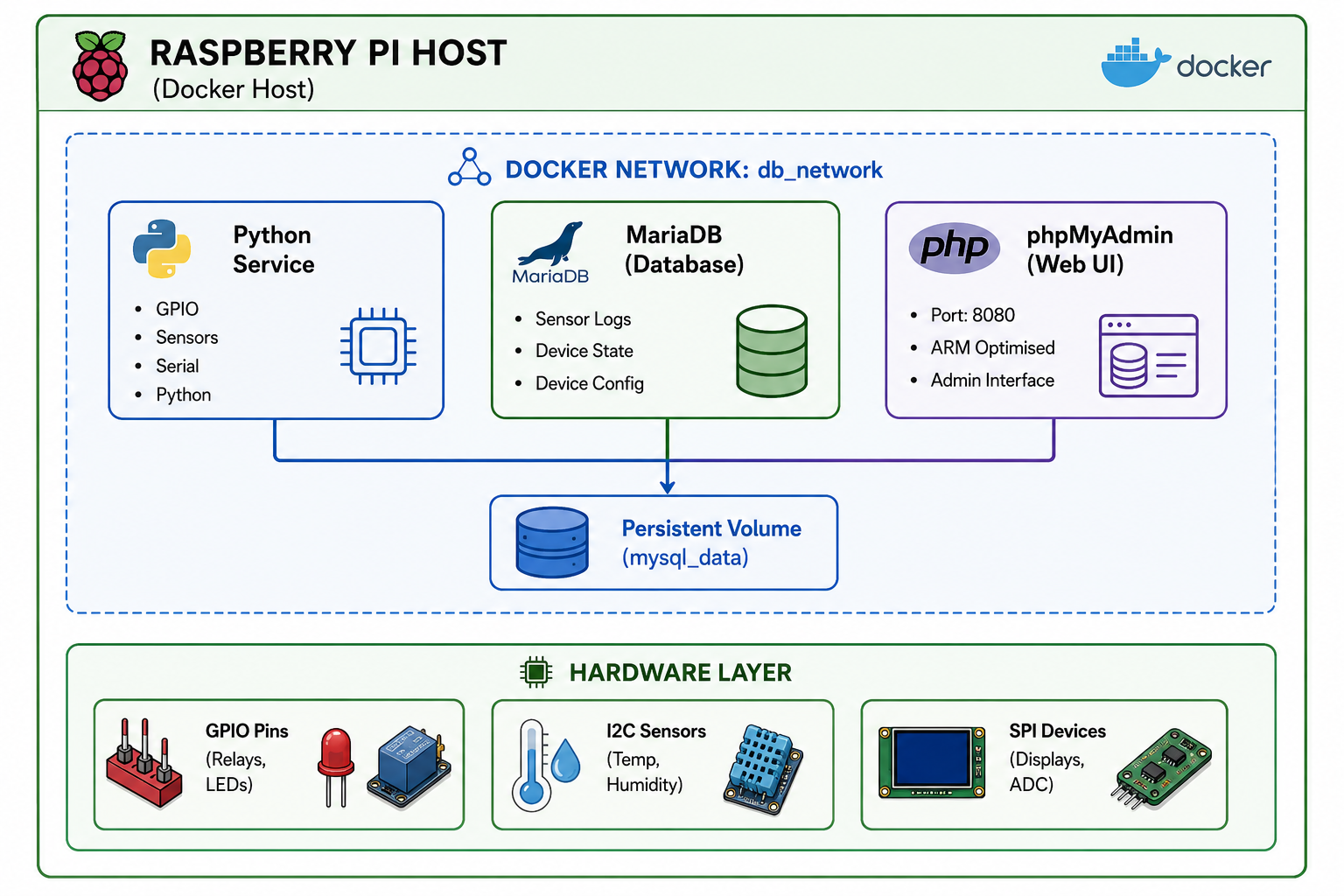
Docker Compose Configuration
Here is the complete docker-compose.yml for the development environment:
version: "3.8"

services:
  # ─── Python Service ──────────────────────────────────────────────────
  python_app:
    build: .
    container_name: python_service
    restart: always
    volumes:
      - ./app:/app           # Mount local app directory
      - /dev/gpio:/dev/gpio   # GPIO access (if needed)
    working_dir: /app
    command: tail -F /dev/null  # Keep container running for interactive development
    depends_on:
      - db                    # Ensure database starts first
    networks:
      - db_network
    # For GPIO access, you may need privileged mode:
    # privileged: true

  # ─── MariaDB Database ──────────────────────────────────────────────
  db:
    image: mariadb:latest    # Better ARM support than MySQL
    container_name: mysql_container
    restart: always
    environment:
      MYSQL_ROOT_PASSWORD: your_root_password
      MYSQL_DATABASE: radio_db
      MYSQL_USER: user1
      MYSQL_PASSWORD: your_user_password
    volumes:
      - mysql_data:/var/lib/mysql   # Persistent database storage
    networks:
      - db_network

  # ─── phpMyAdmin (ARM-optimised) ────────────────────────────────────
  phpmyadmin:
    image: arm64v8/phpmyadmin   # ARM-compatible for Raspberry Pi
    container_name: phpmyadmin_container
    restart: always
    environment:
      PMA_HOST: db              # Use service name as host
      MYSQL_ROOT_PASSWORD: your_root_password
      PMA_USER: user1
      PMA_PASSWORD: your_user_password
    ports:
      - "8080:80"               # Access at http://raspberry:8080
    depends_on:
      - db
    networks:
      - db_network

volumes:
  mysql_data:                   # Persistent MySQL storage

networks:
  db_network:
Component Overview
| Component | Role | Why This Choice? |
|---|---|---|
| Python Service | Application logic – GPIO control, sensor polling, data processing | Python is the standard for embedded scripting on Raspberry Pi. |
| MariaDB | Relational database for sensor logs, configuration, and state | Better ARM performance than MySQL; ACID compliance for data integrity. |
| phpMyAdmin | Web-based database administration | Quick debugging, query execution, and table inspection without SSH. |
| Persistent Volume | mysql_data – survives container restarts | Prevents data loss; critical for production deployments. |
| Shared Network | db_network – internal communication | Isolates services, secure internal communication. |
Directory Structure
project/
├── docker-compose.yml
├── app/
│   ├── main.py          # Your Python application
│   ├── requirements.txt # Python dependencies
│   ├── gpio_control.py  # GPIO utilities
│   ├── sensor_reader.py # I2C/SPI sensor reading
│   └── database.py      # Database connection and queries
└── Dockerfile           # Python container definition
Dockerfile Example
FROM python:3.11-slim

WORKDIR /app

# Install system dependencies (if needed)
RUN apt-get update && apt-get install -y \
    gpio \
    i2c-tools \
    && rm -rf /var/lib/apt/lists/*

# Install Python dependencies
COPY requirements.txt .
RUN pip install --no-cache-dir -r requirements.txt

# Copy application code
COPY app/ .

# Default command (override in docker-compose.yml)
CMD ["python3", "main.py"]
requirements.txt
pymysql
pandas
numpy
# For GPIO
RPi.GPIO
# For I2C/SPI
smbus2
spidev
# For MQTT
paho-mqtt
Extending for GPIO & Communication
This environment is designed to be extended for various GPIO and communication tasks:
GPIO Control
# app/gpio_control.py
import RPi.GPIO as GPIO
import time

GPIO.setmode(GPIO.BCM)

def setup_pin(pin, mode):
    GPIO.setup(pin, mode)

def read_sensor(pin):
    GPIO.setup(pin, GPIO.IN)
    return GPIO.input(pin)

def control_relay(pin, state):
    GPIO.setup(pin, GPIO.OUT)
    GPIO.output(pin, state)
I2C Sensor Reading
# app/sensor_reader.py
import smbus2
import time

bus = smbus2.SMBus(1)

def read_temperature(address):
    # Example: read from I2C temperature sensor
    data = bus.read_i2c_block_data(address, 0x00, 2)
    temp = (data[0] << 8 | data[1]) / 256.0
    return temp

def read_humidity(address):
    data = bus.read_i2c_block_data(address, 0x01, 2)
    humidity = (data[0] << 8 | data[1]) / 256.0
    return humidity
MQTT Integration
# app/mqtt_client.py
import paho.mqtt.client as mqtt

def publish_sensor_data(topic, data):
    client = mqtt.Client()
    client.connect("mqtt_broker_ip", 1883, 60)
    client.publish(topic, data)
    client.disconnect()
Database Logging
# app/database.py
import pymysql
import os

def get_db_connection():
    return pymysql.connect(
        host=os.getenv('DB_HOST', 'db'),
        user=os.getenv('DB_USER', 'user1'),
        password=os.getenv('DB_PASSWORD', '123456'),
        database=os.getenv('DB_NAME', 'radio_db')
    )

def log_sensor_data(sensor_id, temperature, humidity):
    conn = get_db_connection()
    cursor = conn.cursor()
    cursor.execute("""
        INSERT INTO sensor_readings (sensor_id, temperature, humidity, timestamp)
        VALUES (%s, %s, %s, NOW())
    """, (sensor_id, temperature, humidity))
    conn.commit()
    cursor.close()
    conn.close()
Deployment Instructions
1. Clone or create the project
mkdir -p ~/embedded-dev
cd ~/embedded-dev
2. Create the directory structure
mkdir -p app
touch docker-compose.yml Dockerfile app/main.py app/requirements.txt
3. Start the environment
docker-compose up -d4. Access phpMyAdmin
Open your browser: http://raspberry-pi-ip:8080
5. Connect to Python container
docker exec -it python_service /bin/bash6. Run your Python script
docker exec python_service python3 app/main.py7. View database
docker exec -it mysql_container mysql -u user1 -pKey Achievements
- Single-command setup –
docker-compose up -dstarts the entire environment. - ARM-optimised – Runs flawlessly on Raspberry Pi 3/4/5.
- Persistent data – Database survives container restarts.
- Portable – Same environment works on any Docker-enabled ARM host.
- Production-ready – Scalable, maintainable, and upgradeable.
- Security – Isolated containers, internal network communication.
Use Cases
| Application | How This Environment Helps |
|---|---|
| Environmental Monitoring | Python polls I2C/GPIO sensors, logs to MariaDB, phpMyAdmin for querying. |
| Industrial Control | Python controls relays, records states, triggers actions based on database rules. |
| IoT Gateway | Python receives MQTT data, stores in database, exposes via APIs. |
| Data Logging | Continuous sensor logging with historical query capability. |
| Rapid Prototyping | Iterate Python code without rebuilding the entire environment. |
Related Projects
- Embedded Systems Engineering – Complete embedded development overview.
- Scalable IoT Systems – End-to-end IoT platform with this environment.
- Industrial Infrastructure Platform – Production deployment of these systems.
This Docker-powered development environment is part of my broader Embedded Systems Engineering practice. For a detailed technical walkthrough or custom environment design, feel free to reach out.